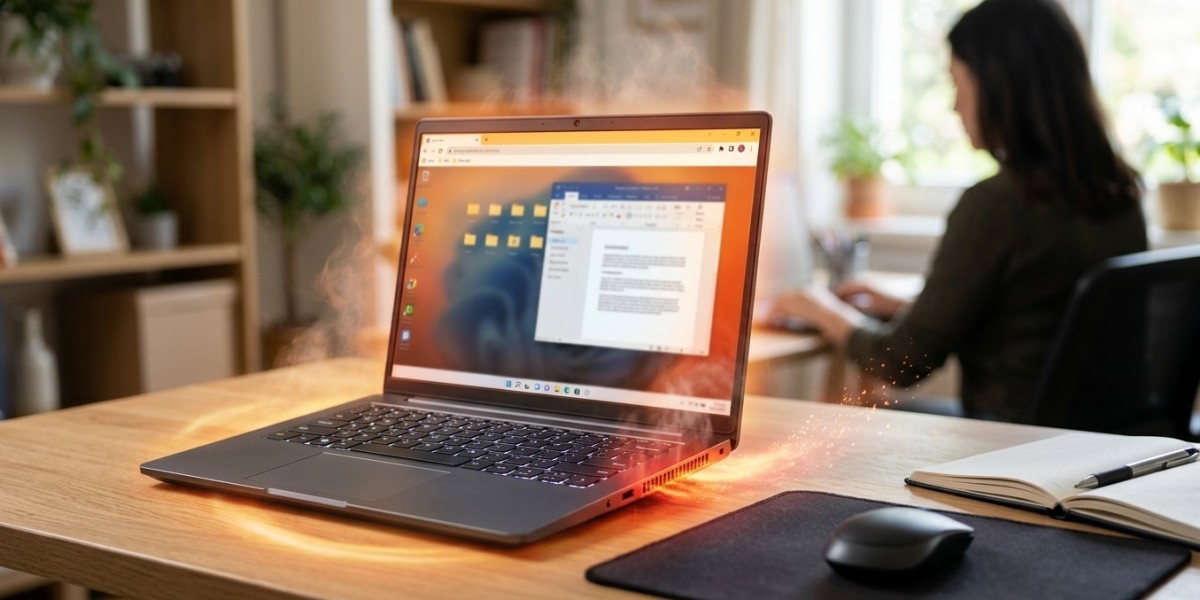

A laptop should be able to handle everyday activities such as browsing the internet, watching videos, writing documents, and attending online meetings without becoming excessively hot. When a device starts overheating during normal use, however, it may indicate a cooling problem, blocked ventilation, aging hardware, or excessive background activity. At iPC Repair Houston, professional technicians can identify the underlying cause before heat begins damaging internal components. A detailed laptop thermal diagnostics check can also reveal related hardware concerns. If overheating occurs alongside display problems, combining the inspection with laptop screen repair Houston or screen repair Houston TX services can help restore the laptop more comprehensively.
Why Does a Laptop Generate Heat?
Every laptop produces heat while operating. The processor, graphics hardware, storage drive, memory, and power circuitry all consume electricity, and some of that electrical energy is converted into heat.
Under normal conditions, the laptop's cooling system moves this heat away from sensitive components. Problems occur when heat production becomes greater than the cooling system's ability to remove it.
A slightly warm laptop is generally normal. Excessive heat, unusually loud fans, performance slowdowns, or sudden shutdowns are signs that something may require attention.
1. Dust Can Block Airflow
One of the most common causes of laptop overheating is dust accumulation.
Over time, dust, lint, and other particles can collect around:
- Cooling fans
- Air vents
- Heat sinks
- Internal air channels
When airflow becomes restricted, hot air cannot escape efficiently. The cooling fan may run continuously while the laptop remains hot.
Regular cleaning can help maintain proper airflow and reduce unnecessary thermal stress.
2. Cooling Fans May Be Failing
Laptop fans play a critical role in moving heat away from internal components. A fan that is worn out, obstructed, noisy, or operating inconsistently may not provide enough airflow.
Common warning signs include:
- Unusually loud fan noise
- Fan repeatedly starting and stopping
- Excessive heat near the keyboard
- Reduced performance
- Unexpected shutdowns
A failing fan should be inspected rather than ignored because prolonged overheating can affect multiple internal components.
3. Thermal Paste Can Lose Effectiveness
Thermal paste helps transfer heat from components such as the processor to the heat sink. Over time, thermal paste can dry out or lose some of its effectiveness.
When heat transfer becomes less efficient, the processor may reach higher temperatures during workloads that previously caused little thermal stress.
Replacing thermal paste when appropriate can improve heat transfer and help the cooling system operate more effectively.
4. Blocked Vents Can Trap Heat
Laptop ventilation openings are designed to allow cool air to enter and warm air to leave. Placing a laptop on soft surfaces such as beds, blankets, couches, or cushions can block these openings.
This restricts airflow and can cause internal temperatures to rise quickly.
For better ventilation, use your laptop on a firm, flat surface whenever possible. Avoid covering vents with clothing or other materials.
5. Background Applications Can Increase Processor Usage
A laptop can overheat even when you are not running demanding programs.
Applications operating in the background may continuously consume processor resources. Automatic updates, cloud synchronization, browser processes, system scans, and other tasks can increase workload.
If the processor remains under heavy load for extended periods, more heat is produced.
Checking Task Manager or the operating system's equivalent resource monitor can help identify applications consuming unusually high CPU resources.
6. Malware May Increase System Activity
Malware and unwanted software can sometimes consume significant system resources without obvious signs.
A compromised laptop may experience:
- High processor usage
- Reduced performance
- Increased fan activity
- Faster battery drain
- Excessive heat
Keeping security software updated and investigating unexplained resource usage can help identify whether unwanted programs are contributing to overheating.
7. Aging Hardware Can Produce More Heat
As laptops become older, various components may become less efficient. Fans can wear down, thermal materials can deteriorate, and internal dust can accumulate.
An aging laptop may therefore become noticeably warmer during tasks it previously handled without difficulty.
This does not automatically mean the device needs to be replaced. A professional inspection can determine whether cleaning, component replacement, or another repair can restore acceptable performance.
8. Battery Problems Can Create Excessive Heat
The battery can also contribute to unusual heat. A damaged or aging battery may become warmer during charging or normal operation.
Warning signs can include:
- Excessive warmth around the battery area
- Rapid battery drain
- Unusual charging behavior
- Unexpected shutdowns
- Physical swelling
A swollen or visibly damaged battery should not be ignored. It should be professionally evaluated and replaced when necessary.
9. Heavy Workloads Can Overwhelm the Cooling System
Even if a laptop is functioning properly, demanding workloads naturally produce more heat.
Gaming, video editing, 3D applications, large software projects, and other processor-intensive activities can push the CPU and GPU harder than everyday tasks.
If overheating only occurs during intensive workloads, the system may simply be reaching its thermal limits. However, excessive temperatures or frequent shutdowns still deserve investigation.
10. Internal Hardware Problems May Affect Thermal Performance
Overheating can occasionally be connected to problems beyond the cooling system.
Issues involving the motherboard, power circuitry, sensors, or internal connections can produce abnormal system behavior and heat.
This is why simply cleaning the vents may not always solve the problem. Laptop thermal diagnostics can help determine whether the source is airflow, cooling hardware, software activity, power management, or another internal component.
How Overheating Affects Laptop Performance
Heat does more than make the laptop uncomfortable to use. Modern computers may automatically reduce processor speed when temperatures become too high.
This process, known as thermal throttling, can cause:
- Slower application performance
- Reduced gaming performance
- Longer processing times
- System instability
- Unexpected shutdowns
Repeated exposure to excessive temperatures can also contribute to premature wear of internal hardware.
When Should You Seek Professional Laptop Repair?
Professional inspection is recommended when your laptop becomes unusually hot during simple tasks or when overheating is accompanied by other symptoms.
Consider getting the device checked if:
- Fans run constantly.
- The laptop becomes extremely hot.
- Performance suddenly drops.
- The system frequently shuts down.
- Battery behavior changes.
- Cleaning the exterior does not improve temperatures.
- Overheating continues after software troubleshooting.
At iPC Repair Houston, technicians can inspect the cooling system and other internal components to identify the source of excessive heat.
If overheating is accompanied by display flickering, black screens, damaged hinges, or other screen problems, laptop screen repair Houston services can also address display-related hardware concerns. For local customers, screen repair Houston TX solutions may be combined with broader laptop diagnostics when multiple problems are present.
Simple Ways to Reduce Laptop Heat
You can reduce unnecessary heat by following a few basic practices:
- Keep ventilation openings clear.
- Use the laptop on a hard, flat surface.
- Clean exterior vents regularly.
- Close unnecessary background applications.
- Keep operating system software updated.
- Avoid exposing the laptop to extreme temperatures.
- Do not ignore unusual fan noises.
- Have persistent overheating professionally inspected.
These habits can help maintain airflow and reduce thermal stress.
Conclusion
A laptop that overheats during normal use may be dealing with dust buildup, blocked vents, failing fans, aging thermal paste, excessive background activity, battery problems, or another internal hardware issue. Identifying the cause early can prevent performance problems and reduce the risk of long-term component damage. Professional laptop thermal diagnostics can provide a clearer understanding of what is causing the excessive heat. iPC Repair Houston can help diagnose and address cooling and hardware concerns, while laptop screen repair Houston and screen repair Houston TX services can be considered when display problems occur at the same time. With proper maintenance and timely repairs, your laptop can remain cooler, more stable, and reliable for everyday use.