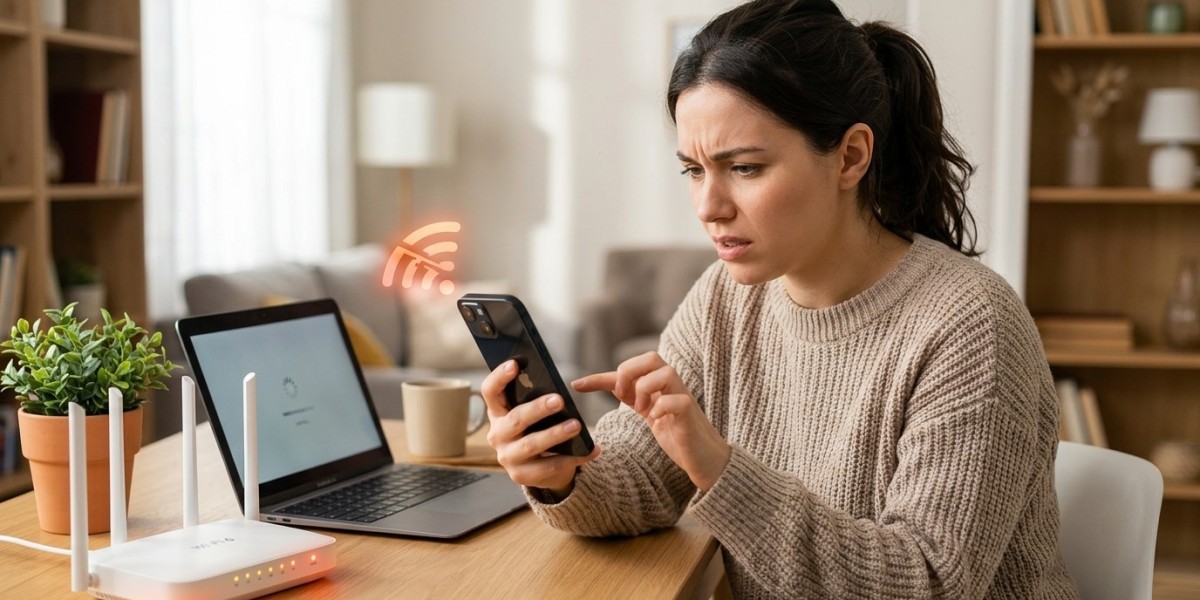

A stable Wi-Fi connection is essential for using your iPhone. Whether you are browsing websites, streaming videos, making video calls, downloading apps, or using social media, frequent Wi-Fi disconnections can be frustrating. You may notice that your iPhone connects to Wi-Fi for a few minutes and then disconnects, repeatedly loses the signal, or shows that it is connected while the internet does not work.
There are several reasons why this problem can occur. Sometimes the issue is related to the Wi-Fi router or internet connection. In other situations, incorrect settings, software glitches, network conflicts, or hardware problems may be responsible. Understanding the possible causes can help you troubleshoot the problem and determine when professional assistance is necessary.
If your iPhone continues disconnecting from Wi-Fi after basic troubleshooting, professional iPhone repair Brooklyn NY can help diagnose whether the issue is related to software or internal hardware. Avenue D Cellular provides professional iPhone diagnostics, repair services, and iPhone screen repair Brooklyn for customers experiencing a variety of device problems.
Common Reasons an iPhone Keeps Disconnecting From Wi-Fi
An unstable Wi-Fi connection can be caused by several different factors.
Common causes include:
- Weak Wi-Fi signal
- Router problems
- Internet service interruptions
- Software glitches
- Incorrect network settings
- Outdated iOS
- Network interference
- VPN or security applications
- Incorrect Wi-Fi configuration
- Internal hardware problems
The first step is determining whether the problem affects only your iPhone or multiple devices connected to the same network.
1. Check Your Wi-Fi Signal Strength
A weak signal is one of the most common reasons an iPhone disconnects from Wi-Fi.
If you are too far from the router, the signal may become unstable. Walls, floors, furniture, and other obstacles can also reduce Wi-Fi strength.
Try moving closer to the router and see whether the connection improves.
If your iPhone remains connected when you are nearby but disconnects farther away, the issue may be related to signal strength rather than the phone itself.
You should also check whether other devices experience similar problems in the same location.
2. Restart Your iPhone
Temporary software issues can sometimes affect Wi-Fi connections.
Restart your iPhone and then reconnect to your Wi-Fi network.
After restarting, monitor the connection for a while.
If the problem disappears, it may have been caused by a temporary system glitch.
If the iPhone repeatedly disconnects after restarting, continue with additional troubleshooting.
3. Restart Your Wi-Fi Router
The problem may not always be caused by your iPhone.
Routers can experience temporary performance problems that affect connected devices.
Restart your router according to the manufacturer's normal instructions. After the connection is restored, reconnect your iPhone and test the network again.
If multiple devices are disconnecting from Wi-Fi, the router or internet connection is more likely to be responsible.
If only your iPhone has the problem, further iPhone troubleshooting may be necessary.
4. Turn Wi-Fi Off and Back On
Sometimes reconnecting the Wi-Fi system can resolve a temporary connection issue.
Turn Wi-Fi off, wait briefly, and turn it back on.
Then reconnect to your network.
Observe whether the connection remains stable.
This is a simple step, but it can help refresh the connection without changing your network settings.
5. Forget the Wi-Fi Network and Reconnect
If your iPhone repeatedly disconnects from one specific Wi-Fi network, the saved network information may be causing a problem.
You can forget the network and reconnect by entering the password again.
This creates a fresh connection using the network's current settings.
Before forgetting the network, make sure you know the correct Wi-Fi password.
After reconnecting, test whether the connection remains stable.
If the issue only happens with one network, the network configuration or router may be involved.
6. Update Your iPhone Software
Outdated software can sometimes cause connectivity issues.
Check whether an appropriate iOS update is available for your iPhone.
Software updates may include bug fixes and improvements related to wireless connectivity.
After updating your iPhone, restart the device and test the Wi-Fi connection again.
Keeping your iPhone updated can help reduce problems caused by software bugs.
7. Check for VPN or Security App Interference
Some VPN applications and security tools can affect internet connections.
If you use a VPN, temporarily disconnect it and test your Wi-Fi.
If the connection becomes stable, the VPN configuration may be contributing to the problem.
Other network-related applications can also affect connectivity.
Review recently installed applications if the Wi-Fi problem started shortly after adding new software to your iPhone.
8. Check for Wi-Fi Interference
Wireless interference can weaken or interrupt a connection.
Other electronic devices and nearby wireless networks may affect Wi-Fi performance.
Your location within the building can also make a difference.
Try using the iPhone on another Wi-Fi network.
If the device works normally on another network, your home or workplace router may need further attention.
If your iPhone disconnects from every Wi-Fi network, the problem may be related to the device itself.
9. Check Whether the Internet Works on Other Devices
Test the same Wi-Fi network with another phone, tablet, or computer.
Ask these questions:
- Do other devices stay connected?
- Do other devices have internet access?
- Is the connection slow for everyone?
- Does the router restart or lose connection?
If multiple devices are affected, contact your internet service provider or inspect the router.
If only your iPhone keeps disconnecting, focus on the device's software and settings.
10. Reset Network Settings
Resetting network settings may help resolve persistent connection problems.
This step can remove saved Wi-Fi networks and passwords, so make sure you have the information needed to reconnect.
Consider this option after trying simpler solutions such as restarting the iPhone, restarting the router, and reconnecting to the network.
After resetting network settings, reconnect to Wi-Fi and monitor the device.
If the connection becomes stable, the issue may have been related to a network configuration problem.
11. Check for Physical Damage
If your iPhone began disconnecting from Wi-Fi after being dropped, hardware damage may be responsible.
An impact can affect internal components and connections.
Look for other symptoms, such as:
- Bluetooth problems
- Weak cellular signal
- Random restarts
- Touchscreen issues
- Screen flickering
- Charging problems
If several features began malfunctioning after a drop, professional iPhone repair Brooklyn NY may be necessary.
12. Consider Liquid Exposure
Liquid exposure can affect internal electronic components, including parts related to wireless connectivity.
Your iPhone may initially appear to work normally, but problems can develop later.
If Wi-Fi issues started after exposure to water or another liquid, professional inspection may be appropriate.
Other symptoms may include:
- Bluetooth connection problems
- Charging issues
- Speaker problems
- Random restarts
- Screen issues
Do not assume that the problem is only related to software if the device has experienced liquid exposure.
When Should You Get Professional iPhone Repair?
Professional assistance may be necessary if:
- Your iPhone disconnects from every Wi-Fi network.
- Restarting does not solve the problem.
- Resetting network settings does not help.
- The problem started after a drop.
- The phone was exposed to liquid.
- Wi-Fi and Bluetooth both have problems.
- Other wireless features are malfunctioning.
- The connection repeatedly fails despite a working router.
A technician can help determine whether the issue is caused by software or internal hardware.
If the device also has physical damage, professional iPhone screen repair Brooklyn may be necessary.
How to Prevent Wi-Fi Connection Problems
Keeping your iPhone and router properly maintained can help reduce connectivity issues.
Keep iOS updated and restart your router occasionally if recommended by the manufacturer.
Avoid using outdated network equipment.
Make sure your router is positioned where it can provide adequate coverage.
Protect your iPhone from drops and liquid exposure.
Also review VPN and network-related applications if you experience frequent connection problems.
Why Choose Avenue D Cellular?
If you are searching for reliable iPhone repair Brooklyn NY, Avenue D Cellular provides professional diagnostics and repair services for a wide range of iPhone issues.
Services can include:
- Wi-Fi and connectivity diagnostics
- Bluetooth troubleshooting
- Software troubleshooting
- General hardware inspection
- Battery replacement
- Charging port repair
- Screen replacement
- iPhone screen repair Brooklyn
- Speaker and microphone repair
Professional diagnostics can help determine whether your Wi-Fi problem is related to software settings, wireless components, or another internal issue.
Final Thoughts
An iPhone that keeps disconnecting from Wi-Fi can be caused by a weak signal, router problems, software glitches, incorrect network settings, interference, or internal hardware damage.
Start by checking your Wi-Fi signal, restarting your iPhone and router, turning Wi-Fi off and back on, and reconnecting to the network. You should also check for iOS updates and test the connection on different networks.
If only one Wi-Fi network causes problems, the router or network configuration may be responsible. However, if your iPhone disconnects from every network, especially after a drop or liquid exposure, professional diagnostics may be necessary.
For dependable iPhone repair Brooklyn NY, Avenue D Cellular offers professional diagnostic and repair services for Wi-Fi problems, software issues, screens, batteries, charging systems, and other iPhone components. Whether you need connectivity troubleshooting or iPhone screen repair Brooklyn, professional assistance can help restore your iPhone's performance and reliability.